Work Order Template
Fill in the customer, the job, the parts and the hours, add photos of the work, let the customer sign on the screen and download one PDF. Prices and totals are optional.
Free · runs in your browser · nothing is uploaded
A work order template is a form that tells a technician what to do and records what was done: who the customer is, where the job is, which work was requested, which parts were used, how many hours it took and who signed it off. This one is filled in on the page instead of in Word or Excel. You type, add photos from the phone camera, collect the customer’s signature with a finger and download a finished PDF.
The same form works for a repair call, an installation, a maintenance visit or an hourly job. Prices, labour and tax are optional, so you can use it as a plain job sheet or as the document that backs up an invoice. The work order form is numbered automatically: the next new form gets the next number on this device.
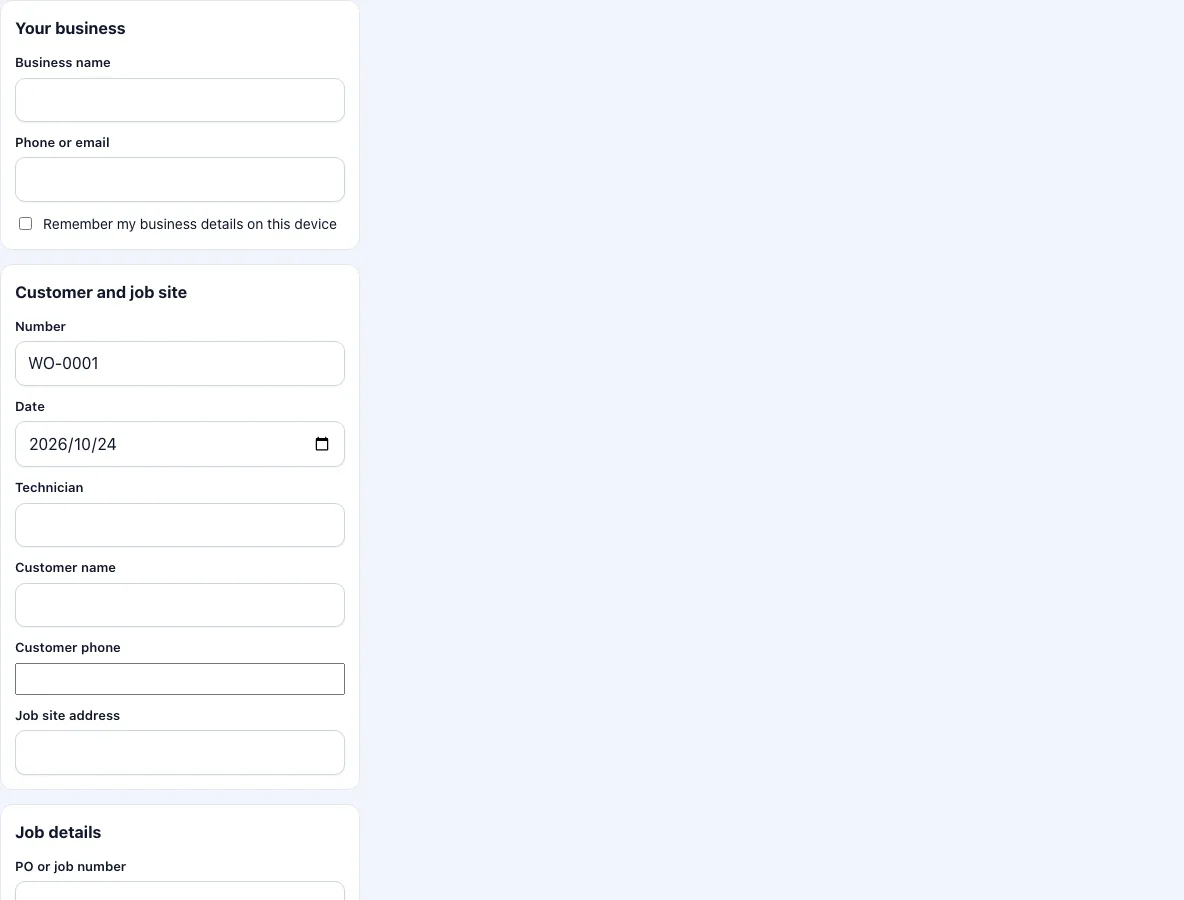
How to fill in the work order
- Enter your business name and phone or email. Tick the box to keep them on this device so that the next form starts with them.
- Check the work order number and the date. The number counts up by itself; you can overwrite it. Add the technician’s name.
- Enter the customer name, phone and the address of the job site.
- Describe the work requested. Add a PO or job number, set the priority and note who asked for the work.
- Write what was done under work performed. Short sentences are enough: what you found, what you replaced, what you left for next time.
- Add parts and materials with quantity and unit price. Add the labour hours and the hourly rate, and a tax rate if you charge tax. The total updates as you type. If the work order should not show prices, untick the price box.
- Press Add photos and take pictures of the job before and after. Give each photo a short caption.
- Hand the phone or tablet to the customer. They sign in the customer box; you sign in the technician box.
- Choose the paper size and press Download PDF. The file is named from the title and the number.
Your text is saved as a draft on the device while you type. Photos and signatures are not saved, so download the PDF before you close the page.
What goes on a work order?
A work order has six parts: an identifier, the parties, the request, the record of work, the costs and the acceptance. The identifier is a number and a date, so that the paper can be found later. The parties are the business that does the work and the customer, with a phone number and the address of the job. The request says what the customer asked for. The record of work says what was found and what was done, in the order it happened. The costs list parts with quantity and price, plus labour hours times the hourly rate. The acceptance is the signature of the customer, and often of the technician too.
Photos belong in the record of work. A before and after picture settles most arguments about the state of a room or a machine, and they take a few seconds to add.
Work order, quote and invoice: what is the difference?
A quote comes first and promises a price. A work order comes next and authorises the work, or records that it was done. An invoice comes last and asks for payment. Small businesses often combine the last two: the work order with prices and a signature is the document the invoice is made from. That is why this form has optional prices, tax and a total. Switch the prices off when the job is under a service contract and the customer pays nothing per visit.
How are the totals worked out?
Each parts line is the quantity times the unit price, rounded to cents. Labour is the hours times the hourly rate. The tax rate is applied to parts and labour together, then added. Example: 2 parts at 10.005 each and 1.5 hours at 80 give parts of 20.01 and labour of 120, a subtotal of 140.01. At 8.25 percent tax that is 11.55, for a total of 151.56. Decimal commas are read correctly, so 1,5 hours counts as one and a half.
Can I get the work order as Word or Excel?
No. The output is a PDF, because a signed document should not be editable after the customer has signed it. If you need the data in a spreadsheet, the draft text stays in your browser only; copy it from the fields.
Frequently asked questions
How do I create a work order?
Fill in the form above and press Download PDF. The number and date are filled in for you. You need at least the customer name and a description of the work for a work order to be useful.
What is an example of a work order?
A heating engineer visits a flat, replaces a pump and records one hour of labour. The work order shows the address, the problem reported, the pump as a part with its price, the hour at the hourly rate, a photo of the old pump and the tenant’s signature.
Does the customer need an account to sign?
No. The customer signs in the box on your screen. Nothing is sent to them; you hand over the PDF or send it yourself.
Can I use the work order without prices?
Yes. Untick the price box and the PDF lists the parts with quantities only, with no unit prices, labour or total.
What happens to my photos?
They are shrunk on your device and placed in the PDF. They are not uploaded anywhere.
Why is a character shown as a question mark?
The PDF uses the standard Western European alphabet. Letters outside it, such as Cyrillic or Chinese, cannot be printed and appear as a question mark. The form warns you when it sees one.
Related tools
- Work order generator: print a pad of numbered blank work orders for paper use.
- Service report template: when the document is a report of findings and recommendations.
- Work order example: filled-in examples for common trades.
- Service ticket template: a short ticket with status and priority.
- Auto repair work order template: vehicle details, diagnosis and a vehicle checklist.
- Draw signature online: the signature box on its own, as PNG, SVG or PDF.
- Job sheet template: the UK name for the same form, A4 with £.