Service Ticket Template
Open a ticket with a number, a priority and a status, write down the issue and how it was resolved, add photos if they help, and download the ticket as a PDF.
Free · runs in your browser · nothing is uploaded
A service ticket template is the form for the short record of one request for service: who asked, what is wrong, how urgent it is, what state it is in and how it ended. It is lighter than a service report. There are no sections for findings and recommendations and no prices by default, only the facts that a dispatcher and a technician need to follow a request from the first call to the last signature.
This template numbers each ticket for you and has fields for status (open, in progress, resolved, closed), priority and the person who reported the issue. Add photos if a picture explains the fault better than words, and let the customer sign to confirm that the issue was resolved.
How to fill in a service ticket
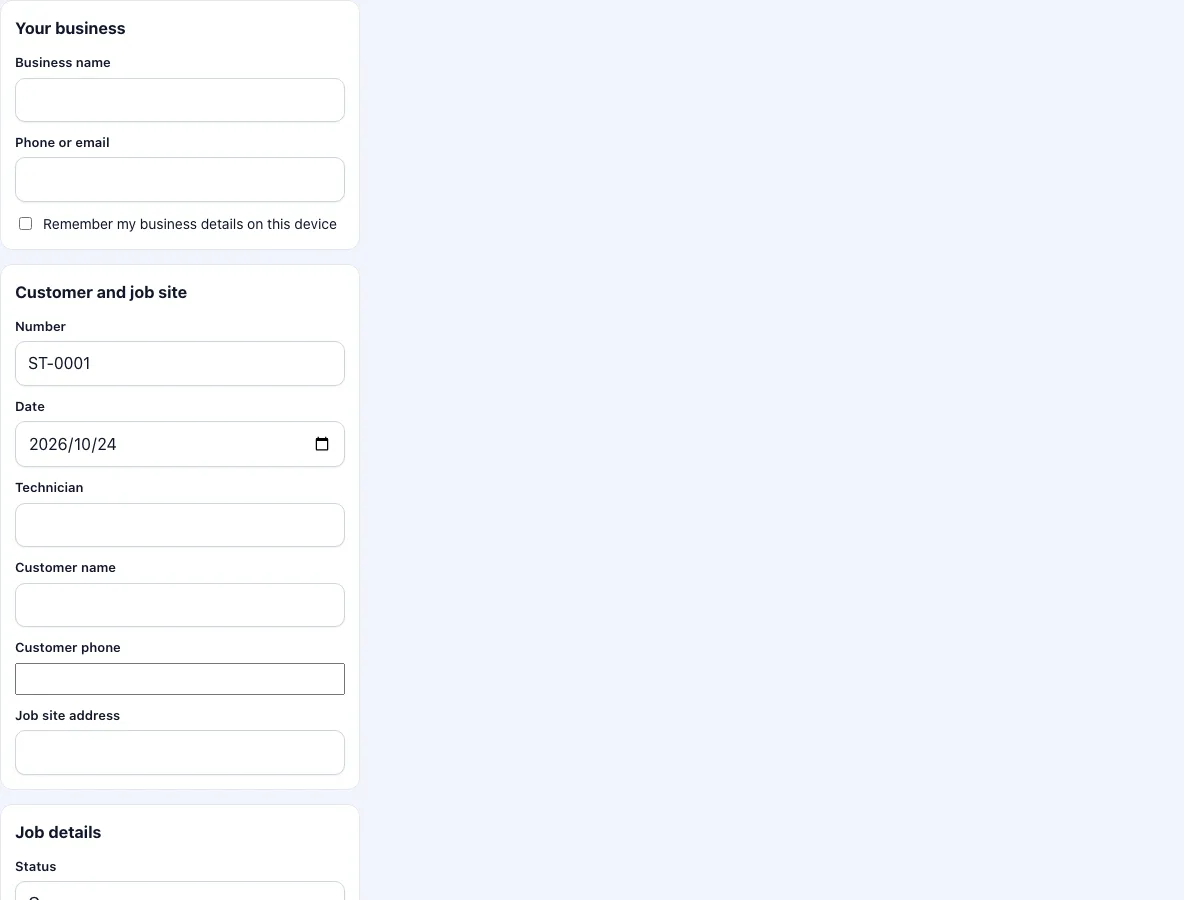
Add your business name and contact, and tick the box to keep them on this device.
Check the ticket number and the date. The number counts up for each ticket you download from this device.
Enter the customer, their phone and the address of the site.
Set the status. A new request is Open; set In progress when work has started; set Resolved when the technician has finished; Closed when the customer has confirmed.
Set the priority: Normal, Urgent or Low. Enter who reported the issue, if it was someone other than the customer contact.
Under issue reported, describe the request. Under resolution, describe how it was resolved.
If you charge for the visit, tick the price box and add parts or labour; otherwise leave it unticked and the PDF has no prices.
Add photos if needed, collect the signatures and press Download PDF.
After the signature, check the status again. If the customer confirmed the fix on site, set Closed before you download. If you need to confirm later, leave Resolved.
Send the PDF to the customer, and keep a copy with your records. If the ticket stays open, make a new one when you return and mention the earlier ticket number in the issue box.
For a request that comes in by phone, fill in the ticket while you talk and download it afterwards, before you drive to the site.
What is a service ticket?
A service ticket is a single record that follows one request through the service process. In an IT help desk it lives in software and carries the email thread. In field service it is often a sheet of paper or a PDF that the technician completes at the site. The core is the same: an identifier, the requester, the issue, the priority, the status and the outcome.
What do the statuses mean?
The four statuses follow the usual life of a request. Open: the request has been received and nobody has started. In progress: a technician is working on it. Resolved: the technician believes it is fixed. Closed: the customer agrees, or the time to object has passed. A PDF is a snapshot, so the status printed on it is the status at the moment you press the button; if it changes later, make a new ticket or note the change on the next one.
Which priority should I choose?
Use Urgent when there is a safety risk, a business stopped, or damage that is getting worse; Normal for a fault that can be dealt with in the usual schedule; Low for a request that can wait. The words are only labels. Agree with your customers what each means, for example a response within four hours for Urgent, and write that agreement in your terms.
How is a ticket different from a work order?
A ticket starts the process and a work order authorises and records the work. When the work is small, the same sheet does both, which is why this ticket can also carry parts and labour. For bigger jobs, create a work order from the ticket and refer to the ticket number in it.
How long should a ticket be?
Short. A ticket that fits in six lines is read; one that runs to a page is skipped. Write the issue as the customer would describe it, and the resolution as the next technician would need it. Details of the work belong in a work order or a service report, which you can write from the same visit.
Frequently asked questions
What is a service ticket?
A record of one service request, from the first report to the resolution, with a number, a priority, a status and the issue and its outcome.
Does the ticket keep a history of status changes?
No. The PDF is a single snapshot. For a log of changes you need ticketing software; this tool is for the paper that goes to the customer.
Can the customer reply to the ticket?
No. The customer can sign the PDF and you can email it, but there is no thread or portal.
Can I use it for IT support?
Yes, for visits on site. For remote tickets with email replies a help desk system is the better tool.
Where is the ticket number stored?
The counter is kept in your browser on this device. If you use a different phone, it starts again from 1, so set the number by hand when you change devices.
Can I use the ticket number as an invoice number?
You can, but it is better to keep them apart. A ticket is about a request and one request can lead to several visits, so the invoice number should come from your accounting records.
Can I change the status labels?
Not on this page. The four statuses are fixed so that every ticket reads the same.
Related tools
- Work order template: authorise and record the job with parts, hours and a total.
- Service report template: a fuller record with findings and recommendations.
- Work order generator: numbered blank forms for paper.
- Field service report template: a visit report with checklist.
- Draw signature online: make a signature image for any form.
- Work order forms: all the work order forms in one list.